

Instagram’s search suggestions are designed to make navigation easier, but they can sometimes reveal outdated, irrelevant, or unwanted results. Whether you’re looking to clean up your search history for privacy reasons or simply want a fresh start, removing these suggestions is quick and easy. In this guide, we’ll walk you through how to clear Instagram search suggestions step-by-step on both Android and iOS devices.
What is the Instagram Search suggestions feature?
Since its launch, Instagram has consistently introduced new features to enhance user engagement. One such feature is search suggestions, designed to help users find relevant content more quickly and easily. This tool streamlines the search process by displaying a list of suggested terms as you begin typing in the search bar — tailored to your input and trending topics on the platform.
The feature automatically recommends related hashtags and accounts. For instance, typing “#nature” might prompt suggestions like #naturephotography, #naturelovers, or #natureza, making content discovery seamless.
With over 2 billion monthly active users, Instagram continues to evolve, and features like these play a key role in helping users explore new content and communities effortlessly.

Why clear Instagram Search Suggestions?
The Instagram algorithm considers all your activity — including search history — when curating your Explore or For You page. So, if you’ve searched for something unusual or random, chances are you’ll start seeing related content, which can be annoying or distracting over time.
Another common reason to clear search suggestions is privacy. If you often share your phone or let others borrow it, you might not want them to see your past searches. Managing or removing these suggestions helps maintain your personal space and keeps your activity private.
How to clear Instagram search suggestions?
1. Clearing Search Suggestions – Manual way
- Open Instagram on your browser and find the search icon on the left-hand side panel.
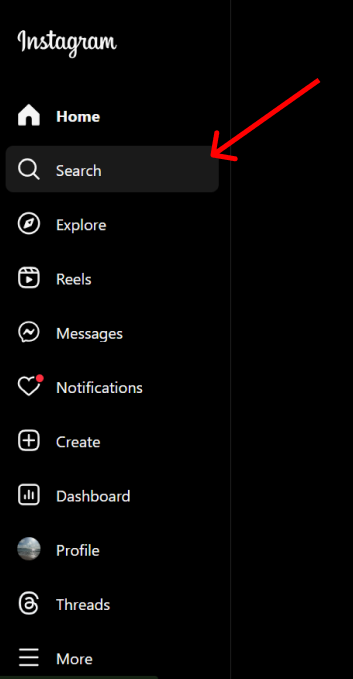
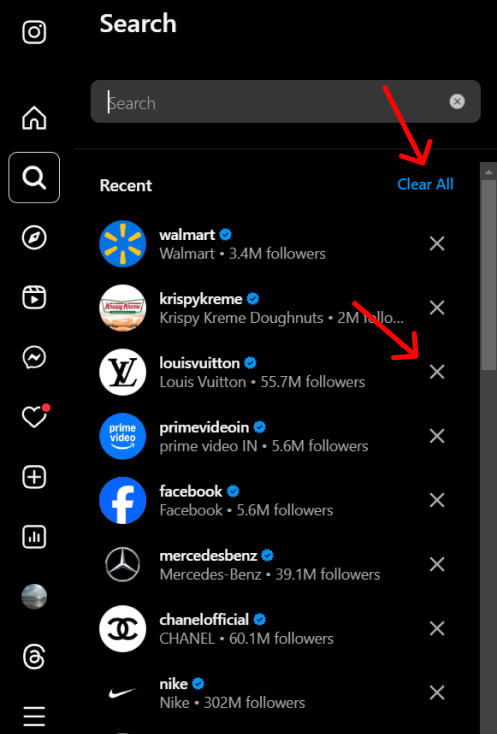
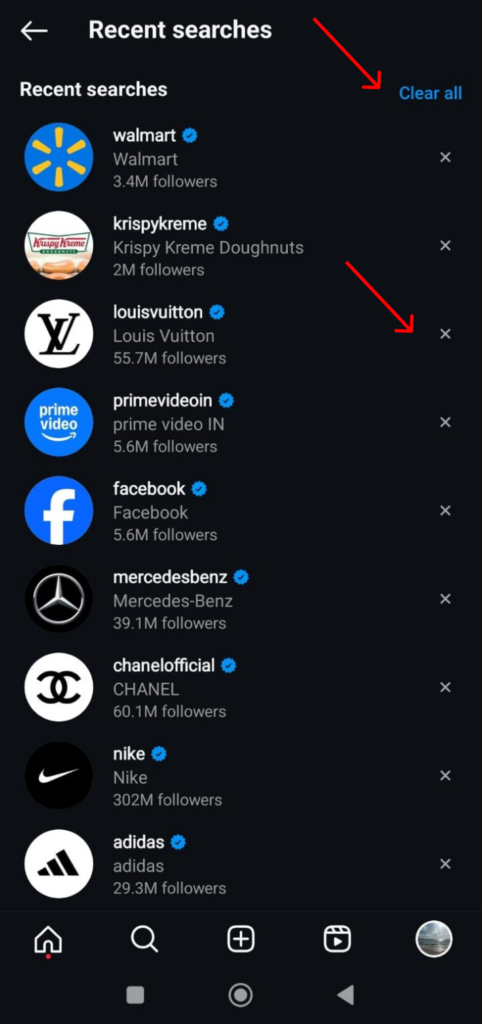
When you tap the button, a pop-up appears showing a search bar and a list of your recent searches. From here, you have two options: tap the “x” next to any specific search to remove it individually, or select “Clear All” beneath the search bar to delete your entire search history at once.
2. Clearing Search Suggestions on Instagram – Through Settings
Before you begin, note that these steps won’t work on a browser, as the Recent Searches option isn’t available there. If you’re looking for a browser-friendly method, skip ahead to the next section.
- Open Instagram and hit the “Profile” button in the bottom panel.
- Hit the Hamburger icon on the right-hand side.
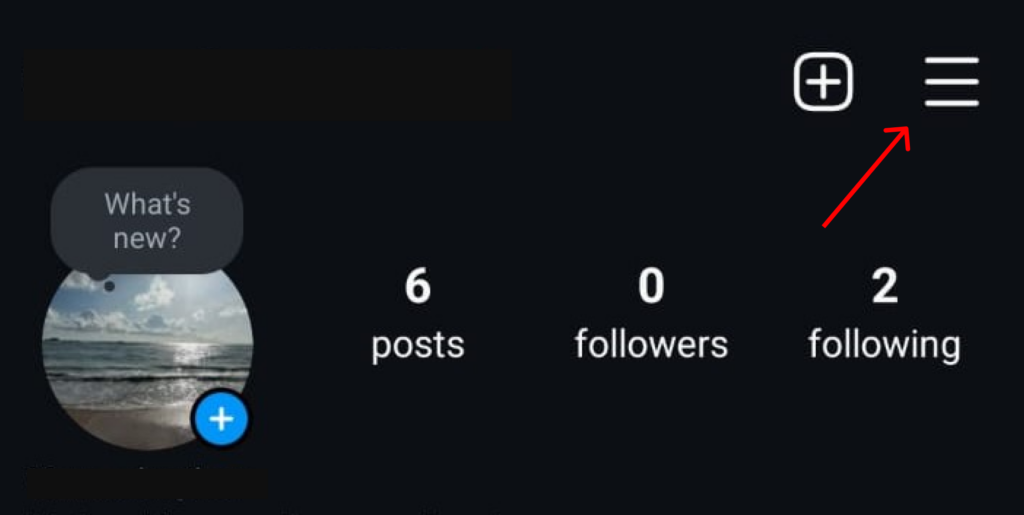
- You will reach the Settings and Activity menu and find the “Your activity” button.

- Then scroll down to find the “Recent Searches” button.
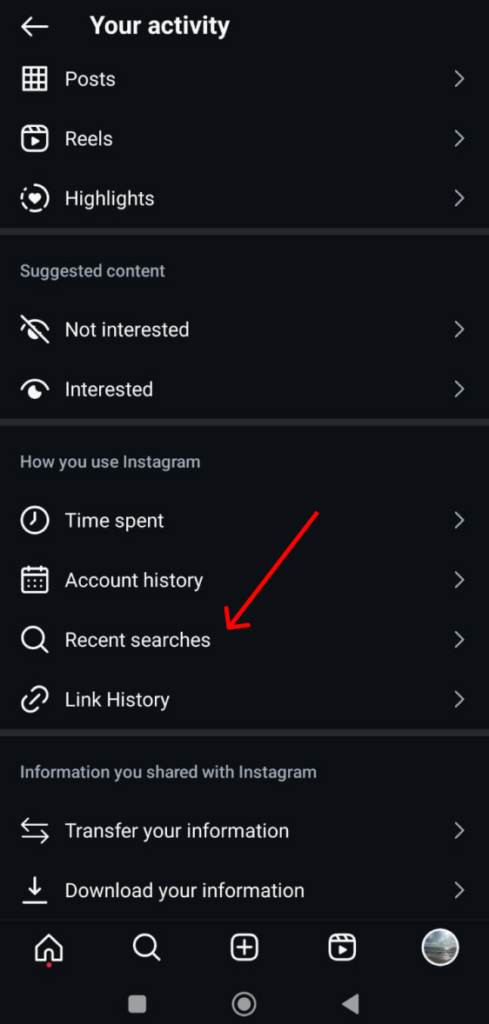
- Now you can either click “Clear all” or the “X” button to remove searches.
There are a few extra ways to manage your Instagram suggestions. One option is to clear the app’s cache, which can help reset personalized content. Another method is to tap the three dots on any post you’d rather not see and select “Not Interested.” This signals the algorithm to stop showing similar content in the future.
And just like that — you’ve got a cleaner, more personalized Instagram search experience!
Conclusion
Instagram’s search suggestions can be helpful — until they start showing things you no longer care about or would rather keep private. Fortunately, managing or clearing them is simple, whether you’re using the app directly or adjusting your content preferences. By following the steps outlined in this guide, you can keep your search history clean, protect your privacy, and make sure your Explore feed reflects what you actually want to see. A few taps are all it takes for a more tailored and clutter-free Instagram experience.