

Ever added the wrong song to your Instagram post—or just changed your mind afterward? Don’t worry, you’re not alone. Music can elevate your content, but the wrong track can ruin the vibe. Luckily, Instagram gives you options to edit or remove music from your posts so your feed stays professional, consistent, and on-brand.
In this guide, we’ll walk you through the steps to remove a song from your Instagram post and share tips to make your content sound just right.
Why Would You Want to Remove a Song from an Instagram Post?
Adding music to Instagram posts can make them more engaging, but there are times you may want to remove it.
-
Mismatch with content: The chosen track doesn’t align with your post’s tone or message.
-
Copyright issues: Some songs may trigger restrictions or cause your post to be flagged.
-
Viewer preferences: Audience feedback might suggest using a different sound—or none at all.
-
Personal choice: You may prefer a cleaner, sound-free version of your post.
Understanding Instagram’s Music Feature
Before learning how to remove a song from an Instagram post, it’s helpful to understand how the music feature works.
Instagram Music Integration
Instagram lets users add music to stories, reels, and certain posts through the music sticker or editor. The tracks come from Instagram’s licensed music library.
Limitations of Editing Music
After a post with music is published, Instagram does not provide a built-in option to edit or remove the track. However, there are a few workarounds you can use.
Ways to Remove a Song from an Instagram Post
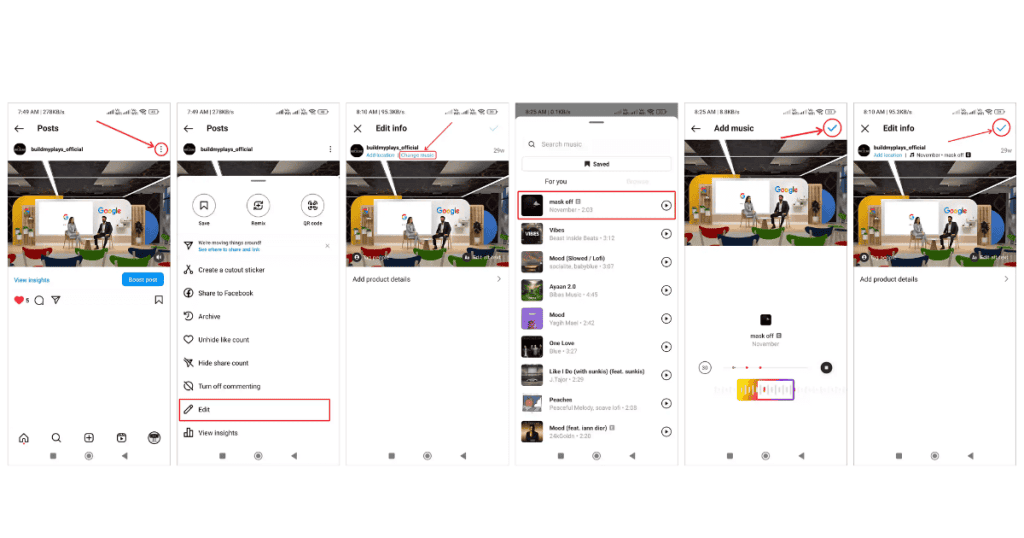
Ways to Remove a Song from an Instagram Post
Delete and Repost
The easiest fix is to delete the post and upload it again without music.
Steps:
-
Open Instagram and go to your post.
-
Tap the three dots in the top-right corner.
-
Select Delete.
-
Re-upload your content, skipping the music feature this time.
Edit with Third-Party Tools
If you still have the original video, you can edit out the music using a video editor and then re-upload.
Steps:
-
Save the original post to your device.
-
Use tools like Adobe Premiere Pro, iMovie, or CapCut to remove or replace the audio.
-
Re-upload the edited version to Instagram.
Use Instagram’s Reel Editor
For reels, Instagram lets you mute or adjust the added track directly.
Steps:
-
Open your reel on Instagram.
-
Tap the three dots in the top-right corner and choose Edit Reel.
-
Adjust the volume slider to mute the music.
-
Save your changes.
Share Your Post as an Instagram Story with Different Music
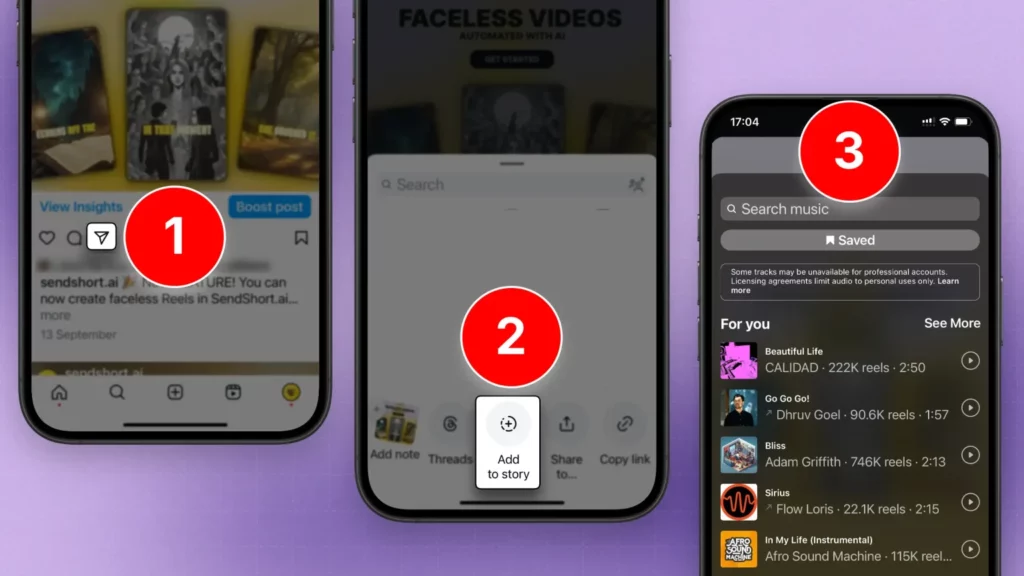
If you don’t want to delete your post, you can share it as a Story and add new music on top. This approach gives your content a fresh vibe without changing the original.
How it works:
-
The original post remains untouched.
-
You create a Story version with new music using Instagram’s music sticker.
Steps:
-
Open Instagram and navigate to the post you want to feature.
-
Tap the Share icon below the post.
-
Select Add Post to Your Story.
-
In Story mode, tap the Sticker icon (the square smiley).
-
Choose the Music sticker.
-
Search for and select a new song.
-
Adjust the duration and snippet of the track.
-
Add text, GIFs, or effects if desired.
-
Tap Your Story to share.
👉 This way, you either republish with the correct song or enhance visibility by overlaying new music in Stories—without losing engagement from the original post.
The Future of Music Editing on Instagram
As Instagram continues to evolve, it’s likely that more user-friendly music editing tools will be introduced. Possible future developments include:
- Direct Music Removal: The ability to edit or remove music from published posts.
- Advanced Sound Editing: Options to replace or modify tracks without deleting posts.
- Expanded Music Library: More royalty-free tracks for seamless usage.
Conclusion
Your Instagram posts deserve to look and sound their best. By learning how to remove or adjust a song, you can fix mistakes, refresh your content, and keep your profile aligned with your personal or brand identity. Next time you’re unsure about the soundtrack, remember—you’re always in control. With just a few taps, you can edit, update, and perfect your posts for maximum impact.