

If you once logged into SoundCloud on a friend’s phone, a public computer, or an old laptop and forgot to sign out, you are not alone. Leaving your account active on devices you no longer control puts your playlists, uploaded tracks, and personal data at risk.
The good news is you do not need to hunt down all the old phones and computers you used in the past just to sign out. SoundCloud has a simple, built-in way to revoke access and kick everyone off your account instantly from one screen.
Here is exactly how to secure your account and log out of all devices at once.
How Do You Log Out of SoundCloud on Mobile Devices?
To log out of SoundCloud on your mobile phone or tablet, you have two main options: using the official SoundCloud app or accessing SoundCloud through your mobile browser. Both methods are straightforward and take just a few taps to complete.
Signing Out from the SoundCloud Mobile App
The SoundCloud mobile app for Android and iOS provides a built-in sign-out option within your account settings. Open the SoundCloud app and tap Library in the bottom navigation bar. Next, select your profile picture in the top right corner to access your account menu. Tap Settings, then scroll down to find Account (located under Autoplay). Continue scrolling until you see Sign Out, tap it, and confirm by selecting OK. This will log you out of SoundCloud on that specific device.
Logging Out from Mobile Browsers
If you access SoundCloud through Safari, Chrome, or another mobile browser, the sign-out process is slightly different. Open your mobile browser and navigate to the SoundCloud website. Look for the profile icon, your username, or the three-dot menu near the search bar in the top right corner. Tap it to reveal a drop-down menu, then select Settings. Scroll to the bottom of the settings page where you’ll find the Sign Out option. Tap it to complete the logout process from your mobile browser session.
How Can You Sign Out of SoundCloud on Desktop?
Desktop users can log out of SoundCloud through web browsers or the dedicated desktop application. The process is quick and accessible from your account menu in both cases.
Logging Out from Web Browsers
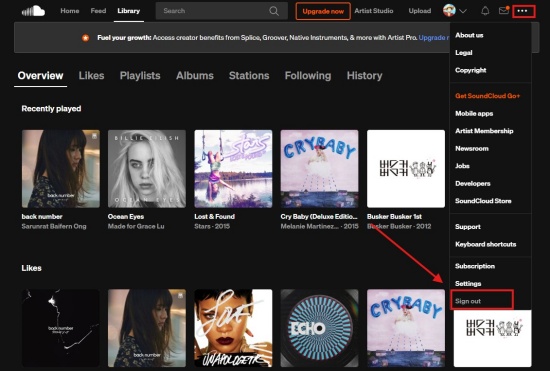
To sign out of SoundCloud on Chrome, Safari, Edge, or any other desktop browser, first visit the SoundCloud website and ensure you’re logged in. Look for the three-dot menu icon (…) in the top right corner of the page. Click it to open a drop-down menu, then select Sign Out from the list. This will immediately log you out of your SoundCloud account on that browser. If you’re managing your presence across platforms and want to increase your SoundCloud track visibility, maintaining proper account security through regular logouts on shared devices is a smart practice.
Signing Out from the Desktop App
The SoundCloud desktop app for Windows and Mac offers a similar logout process. Open the application and click on your profile picture or username at the top right corner. From the menu that appears, select Settings. Scroll down to the bottom of the settings panel where you’ll find the Sign Out option. Click it to log out of your SoundCloud account on the desktop app.
How Do You Log Out of SoundCloud on All Devices at Once?
If you want to sign out of SoundCloud on every device simultaneously—including phones, tablets, computers, and any connected third-party applications—you can revoke all access through your account’s connected applications settings. This method is particularly useful if you’ve lost a device or simply want a complete security reset.
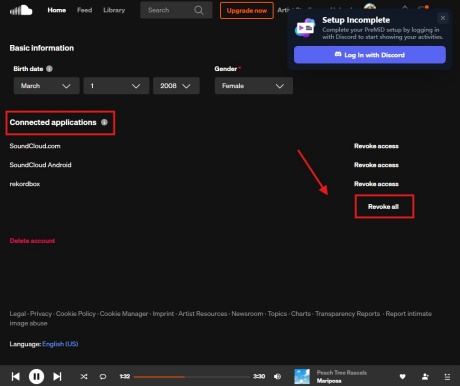
To log out everywhere, open any web browser on your mobile device or computer and visit the SoundCloud website. Make sure you’re signed in, then click the three-dot menu icon near your profile picture. Select Settings from the drop-down menu. Scroll down until you reach the Connected applications section. Here you’ll see all devices and apps that have access to your account. Click Revoke all at the bottom of this section, then confirm by clicking Revoke all again when prompted. This action will sign you out of SoundCloud on all devices and disconnect all third-party applications immediately.
According to SoundCloud’s official blog, managing your connected applications regularly helps maintain account security and ensures you’re only logged in where you need to be. This is especially important for artists and creators who access their accounts from multiple studios or shared workspaces.
What Should You Do When SoundCloud Won’t Let You Log Out?
Sometimes the SoundCloud logout function fails due to cached data, browser extensions, or app glitches. When you experience this issue, there are several troubleshooting methods you can try depending on whether you’re using a web browser or mobile app.
1. Fixing Logout Issues on Web Browsers
If you can’t log out of SoundCloud on your desktop or mobile browser, start by clearing your browser cache and cookies. Navigate to your browser settings, find the privacy or history section, and clear your browsing data. Next, disable any browser extensions—particularly ad-blockers or privacy plugins—as these can interfere with the scripts needed for signing out. Try opening an incognito or private browsing window to test if the logout works there; if it does, your main browser’s cookies are likely corrupted. As a last resort, access the SoundCloud Connected Applications page directly and use the “Revoke all” option to force a logout from all sessions.
2. Resolving Mobile App Logout Problems
For mobile app logout issues, begin by clearing the app cache through your device’s application settings. On Android, go to Settings > Apps > SoundCloud > Storage > Clear Cache. On iOS, you may need to offload and reinstall the app. Force-stopping the app from your phone’s application manager and restarting it can also resolve temporary glitches. Check your app store for any available SoundCloud updates, as bugs are often fixed in newer versions. If all else fails, uninstall the SoundCloud app completely and reinstall it from the App Store or Google Play Store.
Why Is Managing SoundCloud Logins Important for Account Security?
Properly managing where you’re logged into SoundCloud is crucial for both security and account control. According to Pew Research Center, over 60% of internet users access their accounts from multiple devices, making session management increasingly important. When you remain logged in on unused or shared devices, you risk unauthorized access to your account, playlist modifications, or even account hijacking.
SoundCloud allows unlimited device logins, but only one device can stream music at a time for all users. SoundCloud Go and Go+ subscribers can download tracks on up to three devices simultaneously. By regularly logging out of devices you no longer use and periodically revoking all connected applications, you maintain better control over your account’s access points. This is particularly important for artists and creators who may access their accounts from studios, venues, or collaborators’ devices.
For more tips on managing your social media and streaming platform accounts securely, check out our guide on how to control privacy settings on TikTok, which covers similar security practices for another popular platform.
Comparison: SoundCloud Logout Methods
| Method | Devices Affected | Steps Required | Best For |
|---|---|---|---|
| Mobile App Sign Out | Single device only | 6 steps | Quick logout on your phone |
| Browser Sign Out | Single browser session | 4-5 steps | Logging out from shared computers |
| Desktop App Sign Out | Single desktop app | 4 steps | Desktop-only logout |
| Revoke All Access | All devices and apps | 6-7 steps | Complete security reset |
This comparison shows that while individual logout methods are faster, the “Revoke All Access” option provides the most comprehensive security solution when you need to ensure you’re logged out everywhere at once.
Conclusion
And you’re all set! It only takes a minute, but it’s a huge relief knowing no one else is piggybacking on your account. It is a good habit to do this every now and then, especially if you tend to log in on friends’ phones or shared computers.
Now that everyone else is kicked off, you can get back to your music in peace.
Frequently Asked Questions
1. How many devices can you be logged into SoundCloud at once?
You can log into SoundCloud on unlimited devices simultaneously, but you can only stream music on one device at a time. SoundCloud Go and Go+ subscribers can download tracks for offline listening on up to three different devices.
2. Does logging out of SoundCloud delete your playlists?
No, logging out of SoundCloud does not delete your playlists, liked tracks, or any other account data. All your content remains saved to your account and will be accessible when you log back in.
3. Can you log out of SoundCloud remotely from another device?
Yes, you can remotely log out of all devices by accessing the Connected Applications section in your SoundCloud settings from any device and selecting “Revoke all.” This will sign you out of SoundCloud on every device and disconnect all third-party applications.